
Canvas Catalog Support Guide
Canvas Catalog is the University of Manchester's online course discovery and enrolment platform, providing access to a range of learning opportunities from across the institution. The webpage you have arrived on will have its own unique web address, as it forms part of the University's wider course catalogue.
This support document is only applicable to users without a University of Manchester IT account. For example, these are users without one of the following email domains associated with their account:
@manchester.ac.uk, @student.manchester.ac.uk, @postgrad.manchester.ac.uk, @mba.mbs.ac.uk, @mbs.ac.uk, @postgrad.mbs.ac.uk, @cppe.ac.uk, @cruk.manchester.ac.uk, @manchester.ac.ae, @nxct.ac.uk, @productivity.ac.uk, @royce-institute.ac.uk, @royce.ac.uk, @tarn.ac.uk, @unit-m.co.uk, @uom-affiliate.org.uk, @uom-partner.org.uk
This support document covers (select to jump to the correct page):
- Course Listing Queries
- Setting up Multi-Factor Authentication (MFA)
- Resetting your Canvas password
- Further Support
1. Course listing query
If you have a query about a course listing, please contact the email address provided within that listing so your question reaches the right team, and you receive a response as soon as possible.
2. Setting up Multi-Factor Authentication (MFA) in Canvas
Overview
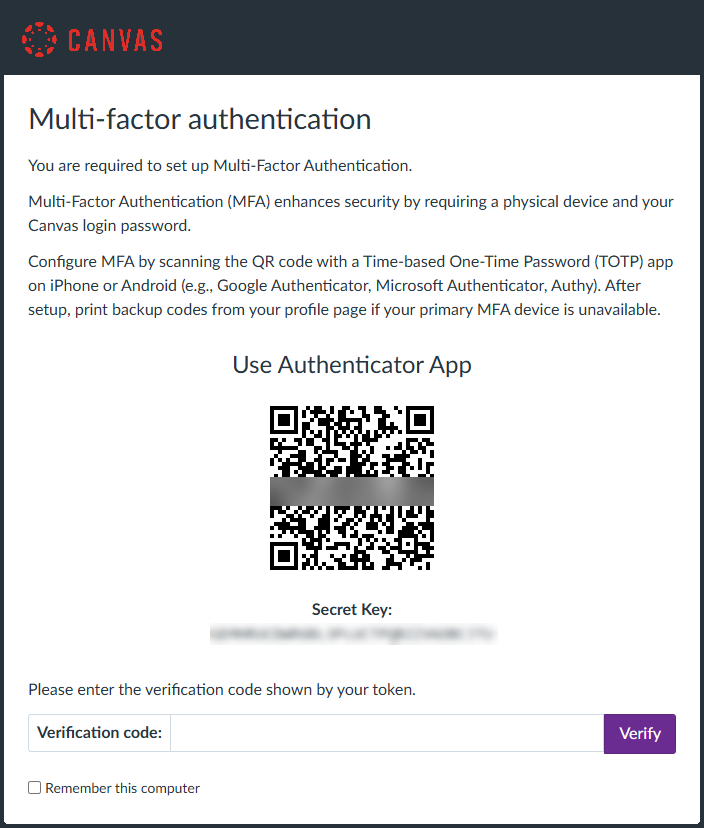
When you first log in to Canvas, you will be prompted to set up multi-factor authentication (MFA). MFA enhances security by requiring both your Canvas password and a physical device (such as your phone) to verify your identity. This setup is mandatory for all new logins. See image below for reference:
Initial setup
- Create an Account - You will be prompted to create an account upon enrolling for a course.
- Log in to Canvas - After setting your password, you will see the MFA setup screen.
- Scan the QR code - Use a time-based one-time password (TOTP) app such as:
- Google Authenticator
- Microsoft Authenticator
- Authy
- Enter the verification code from your MFA app to complete setup.
- Once setup is complete, follow the instructions below to save 'Backup Codes' to provide you with access in case your device is unavailable.
Backup codes
If your MFA device is unavailable, you can log in using backup codes.
To view or print backup codes:
- In Canvas, select Account from the main menu.
- Go to Settings.
- Select 'Multi-Factor Authentication Backup Codes' (opens in a new window).
- Print and store them in an accessible but secure location.
- You can regenerate a new set of backup codes at any time from the same menu option.
Reconfiguring MFA
If you need to change your MFA device:
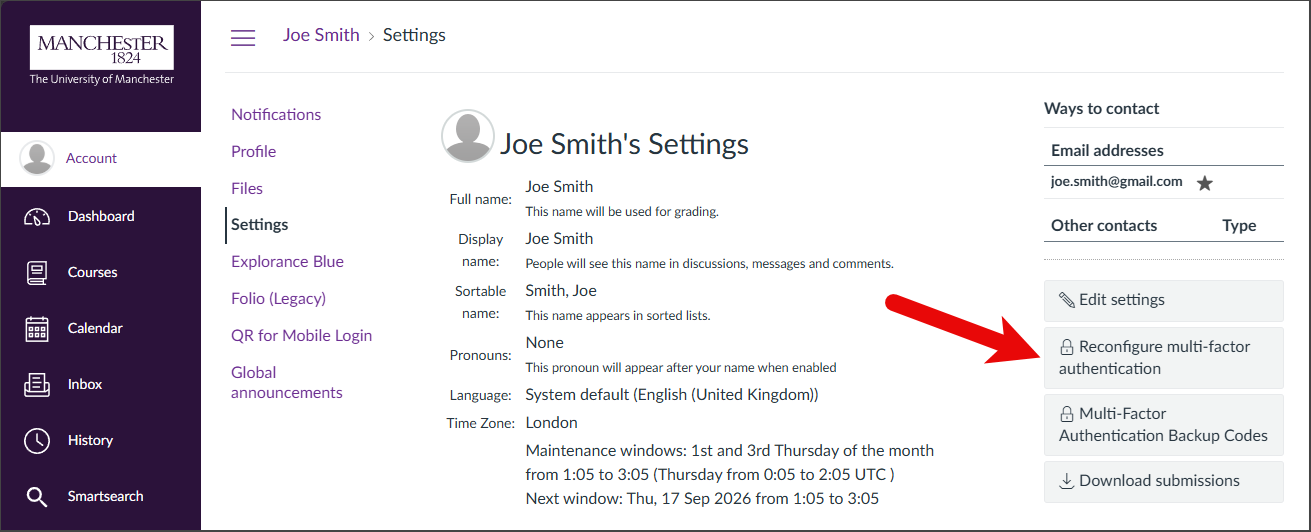
- Go to Account → Settings.
- Select 'Reconfigure multi-factor authentication' and follow the setup steps again. See image below for reference:
Remembering your device
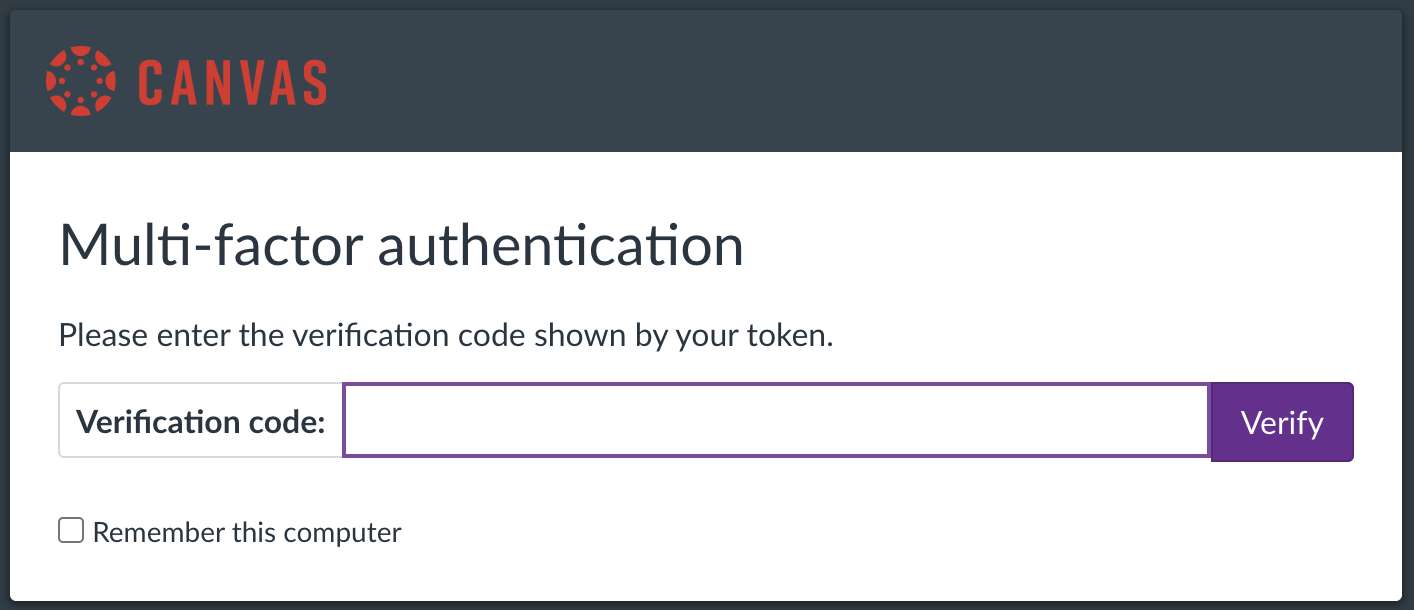
When logging in, you can tick Remember this computer to avoid repeated MFA prompts on that device. See image below for reference:
- MFA will still be required if you:
- Use a different browser or device
- Open an incognito/private browsing window
- Access Canvas from a mobile device for the first time
3. Resetting your Canvas password
Overview
If you forget your Canvas password, you can quickly reset it using the password reset link on the login page.
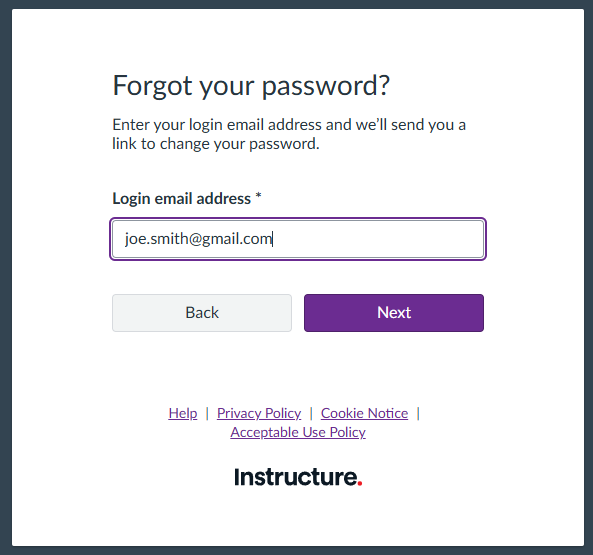
Steps to reset your password
- Go to: https://canvas.manchester.ac.uk/login/canvas
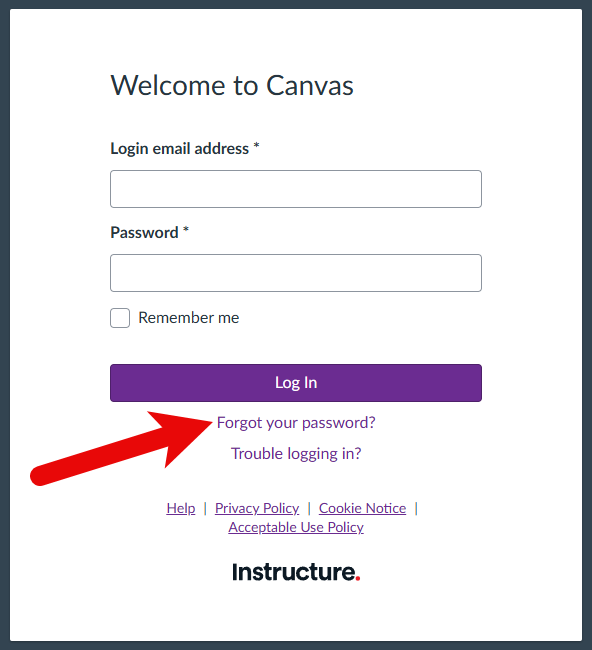
- Click Forgot your password.
- Enter your Canvas login email address.
- Click Next.
- Follow the instructions in the password reset email you receive. See image below for reference:
4. Further support
Please contact the email address provided within your course listing to ensure your query is dealt with as soon as possible.
Only if no contact is listed, please email Guest-ServiceDesk@manchester.ac.uk using one of the specified subject lines and provide the required details below to ensure our team can quickly identify your query and respond as efficiently and appropriately as possible.
Email subject lines:
- For MFA issues: Canvas Catalog – MFA – ‘Your Name’
- For password issues: Canvas Catalog – Password – ‘Your Name’
- For a course listing query: Canvas Catalog – ‘Course Name’ Query – ‘Your Name’
Email details:
- Include your full name and registered email address (if applicable).
- Attach the landing page URL where you saw the course listing.
- Attach the course listing URL.
- Describe your query/problem in detail (including any error messages).

